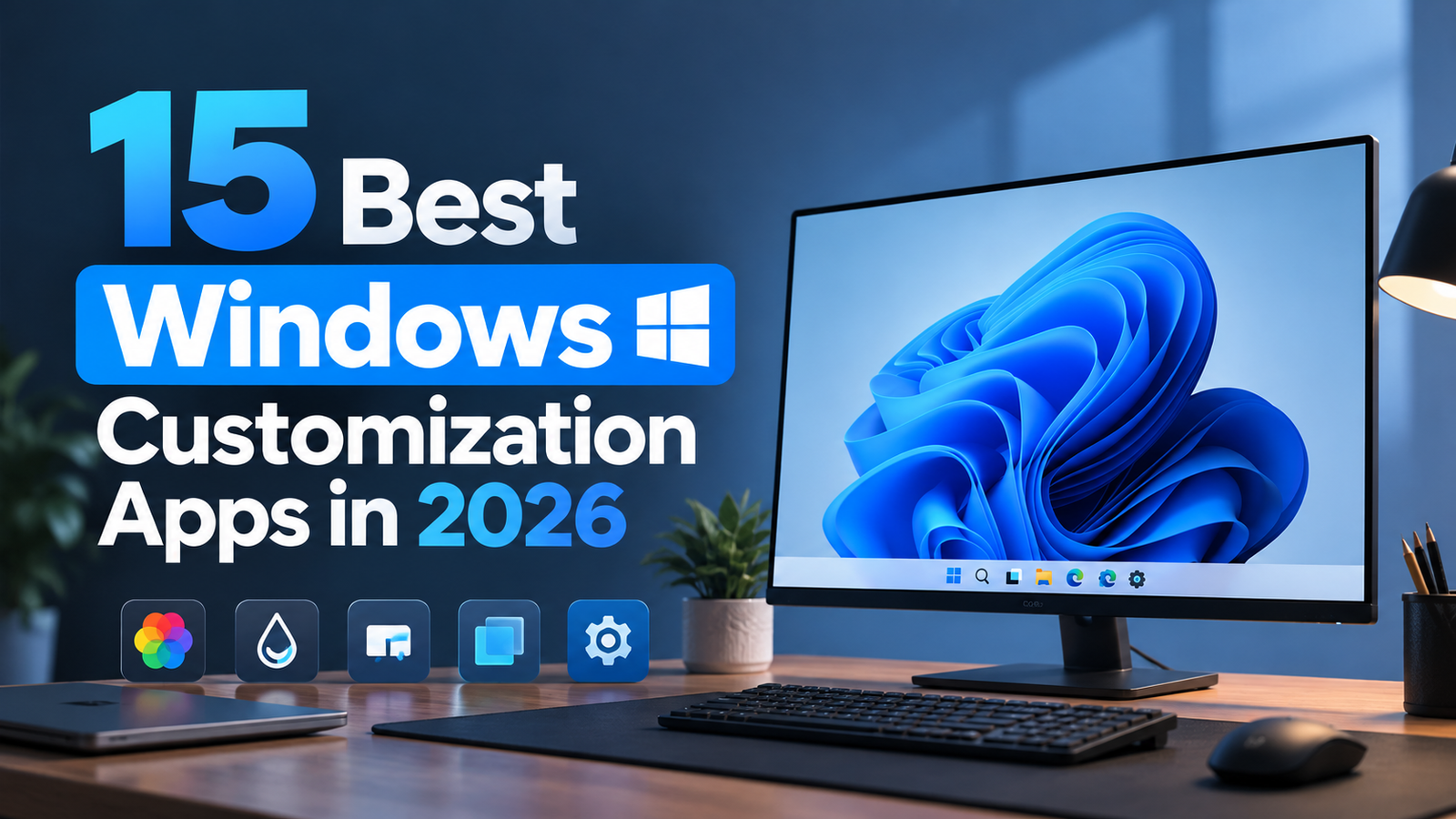
Windows offers several ways to customize your PC, improve productivity, and create a modern desktop experience. With the right applications, you can personalize your wallpaper, taskbar, widgets, keyboard shortcuts, and file management system.
Whether you use Windows 10 or Windows 11, these tools can help you create a cleaner, more attractive, and more efficient workspace.
1. Monitorian: Control Monitor Brightness
Monitorian lets you adjust the brightness of compatible external monitors directly from Windows. It eliminates the need to navigate your monitor’s physical buttons every time you want to change the brightness.
Key Features
• Adjust external monitor brightness.
• Control multiple supported displays.
• Make quick brightness adjustments.
• Simplify everyday screen management.
Monitorian is particularly useful for desktop users and people who regularly connect external monitors to their laptops.
2. Lively Wallpaper: Add Live Wallpapers
Lively Wallpaper lets you transform your desktop with animated and interactive backgrounds. You can choose from different visual styles or import compatible wallpapers from external sources.
Key Features
• Apply animated desktop wallpapers.
• Import supported custom backgrounds.
• Create a dynamic desktop appearance.
• Configure playback and resource usage.
For better performance, choose lightweight wallpapers, especially if your PC has limited RAM or an older graphics processor.
3. Rainmeter: Customize Desktop Widgets
Rainmeter allows you to add customizable skins and widgets to your Windows desktop. You can display system information, clocks, calendars, music visualizers, and other useful elements.
Key Features
• Display CPU and RAM usage.
• Add clocks and calendar widgets.
• Customize desktop layouts.
• Install community created skins.
To get started, install Rainmeter, download a compatible skin, load it through the skin manager, and arrange the widgets according to your preferences.
4. Rounded TB: Customize Taskbar Corners
RoundedTB is a Windows customization utility designed to give the taskbar a more modern appearance through rounded corners and adjustable margins.
Key Features
• Create rounded taskbar corners.
• Adjust taskbar spacing.
• Customize the desktop appearance.
• Experiment with compact layouts.
Check compatibility with your Windows version before installing the application.
5. Translucent TB: Make the Taskbar Transparent
TranslucentTB allows you to customize the transparency and appearance of the Windows taskbar. It is suitable for users who prefer a minimal desktop with fewer visual distractions.
Key Features
• Apply taskbar transparency effects.
• Create a cleaner desktop appearance.
• Customize taskbar visual styles.
• Match the taskbar to your wallpaper.
Its available effects depend on your Windows version and application settings.
6. Microsoft PowerToys: Unlock Advanced Windows Features
Microsoft PowerToys is a free, open-source collection of utilities that extends Windows customization and productivity features.
PowerToys Run
Quickly find applications, files, and other supported items through a searchable launcher.
Text Extractor
Copy text from selected areas of your screen using optical character recognition.
Keyboard Manager
Remap keyboard keys and customize shortcuts according to your workflow.
FancyZones
Arrange application windows into custom layouts for easier multitasking.
Always On Top
Keep a selected window above other applications.
Awake
Prevent your PC from entering sleep mode during selected tasks.
Mouse Utilities
Improve cursor visibility and make it easier to locate your mouse pointer.
PowerToys is particularly useful for developers, students, researchers, and professionals who work with multiple applications.
7. QuickLook: Preview Files Instantly
QuickLook allows you to preview supported files without opening them in their full applications. It can save time when browsing folders containing numerous images, videos, and documents.
Key Features
• Preview supported images and documents.
• View compatible video files.
• Open previews using the Spacebar.
• Reduce unnecessary application switching.
After installing QuickLook, select a file in File Explorer and press the Spacebar to display its preview.
8. Browser Customization: Create a Minimal Interface
A clean browser interface makes everyday browsing more organized. You can personalize your browser without changing your entire Windows setup.
Customization Tips
• Remove unnecessary shortcuts.
• Choose a minimal browser theme.
• Organize bookmarks into folders.
• Pin frequently used websites.
• Create shortcuts to useful web applications.
Keep frequently visited websites accessible and remove elements that distract you from your work.
9. Remote Desktop: Access Your PC from Anywhere
Remote desktop applications allow you to access your computer from another compatible device. Depending on the application, you can open programs, manage files, and use your desktop remotely.
Key Features
• Access desktop applications remotely.
• Manage files from another device.
• Connect using supported phones and tablets.
• Use your PC while away from home.
Choose a trusted application, enable strong authentication, and secure your remote connections.
10. LocalSend: Transfer Files Between Devices
LocalSend is an open source application that lets you transfer files between compatible devices over a local network.
Key Features
• Share photos and videos.
• Transfer documents between devices.
• Support multiple operating systems.
• Reduce dependence on cloud storage for local transfers.
LocalSend is useful when moving files between computers and smartphones without relying on a cloud storage account.
11. Keyboard Shortcuts: Work More Efficiently
Keyboard shortcuts can make everyday computer tasks faster and easier. You can use built in Windows shortcuts or customize your own with compatible utilities.
Useful Customizations
• Assign shortcuts to frequently used applications.
• Remap rarely used keyboard keys.
• Create shortcuts for repetitive tasks.
• Configure text snippets where supported.
Microsoft PowerToys provides additional options for keyboard remapping and shortcut customization.
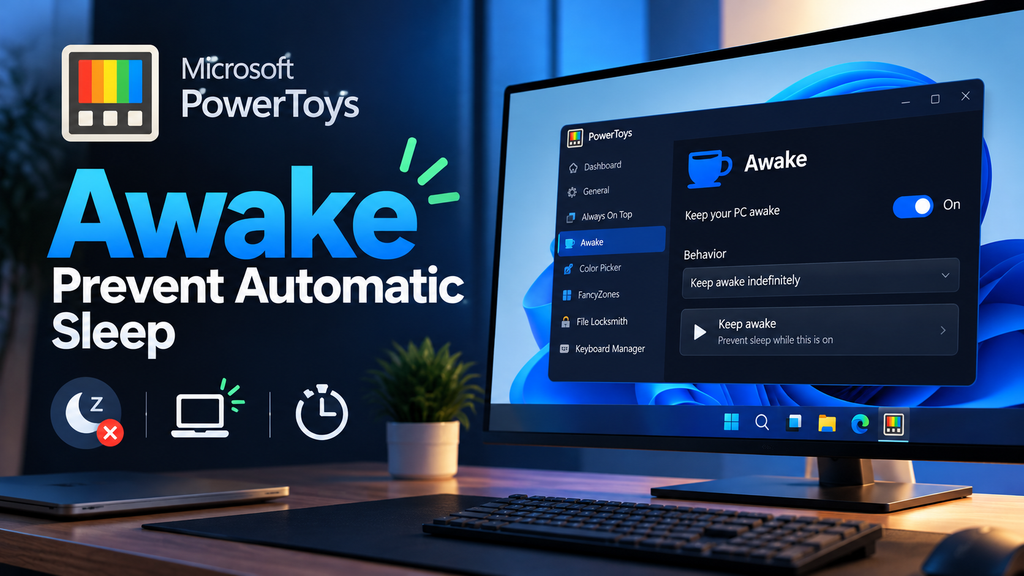
12. PowerToys Awake: Prevent Automatic Sleep
PowerToys Awake helps keep your PC awake while you perform tasks that require uninterrupted operation.
Key Features
• Keep the PC awake temporarily.
• Support lengthy downloads.
• Prevent sleep during selected processes.
• Configure the desired awake duration.
Use this feature when necessary and return to your normal power settings after completing the task.
13. FancyZones: Improve Multitasking
FancyZones helps you organize application windows into custom screen layouts. It is particularly useful when working with several applications simultaneously.
Key Features
• Create personalized window zones.
• Arrange multiple applications.
• Improve multitasking efficiency.
• Make better use of ultrawide monitors.
For example, you can keep your browser, code editor, and documentation visible on the same screen without constantly switching between windows.
14. Lightweight Customization: Improve PC Performance
Customization should improve your desktop without unnecessarily slowing down your computer. If you have a low end PC, choose your applications carefully.
Performance Tips
• Use static wallpapers when necessary.
• Limit unnecessary desktop widgets.
• Disable unused background applications.
• Avoid excessive visual effects.
• Monitor CPU, GPU, and RAM usage.
• Install only the tools you need.
A simple configuration often provides a better balance between appearance and performance.
15. Personalized Windows Setup: Combine the Best Tools
You can combine a few applications to create a desktop that looks modern and works efficiently.
| Purpose | Recommended Application |
| Monitor brightness | Monitorian |
| Live wallpapers | Lively Wallpaper |
| Desktop widgets | Rainmeter |
| Rounded taskbar | RoundedTB |
| Transparent taskbar | Translucent TB |
| Productivity tools | Microsoft PowerToys |
| File previews | QuickLook |
| Local file sharing | LocalSend |
| Window management | FancyZones |
Choose applications according to your needs and check compatibility before combining multiple customization tools.
Frequently Asked Questions
Which customization apps are suitable for low end PCs?
QuickLook and selected PowerToys utilities are good starting points. Use animated wallpapers and desktop widgets selectively.
Which Windows customization apps are best in 2026?
Rainmeter, Lively Wallpaper, Microsoft PowerToys, RoundedTB, and TranslucentTB are useful choices for desktop customization and productivity.
Can I customize Windows 11 without installing applications?
Yes. Windows 11 includes built in options for wallpapers, themes, accent colors, and other personalization settings.
Do customization apps slow down a PC?
Some applications use additional CPU, GPU, or RAM resources. Lightweight tools and simple configurations can help minimize their impact.
Is Microsoft PowerToys free?
Yes. Microsoft PowerToys is a free, open source collection of utilities for Windows.
Do these apps support Windows 10 and Windows 11?
Compatibility varies by application and version. Check the official documentation before installing any tool.
Conclusion
Windows customization apps can improve both the appearance and functionality of your PC. From live wallpapers and desktop widgets to advanced window management and file previews, each application offers different benefits.
Choose the tools that match your requirements, keep your setup organized, and prioritize performance alongside appearance. With the right combination of customization and productivity applications, you can create a modern Windows desktop in 2026.