
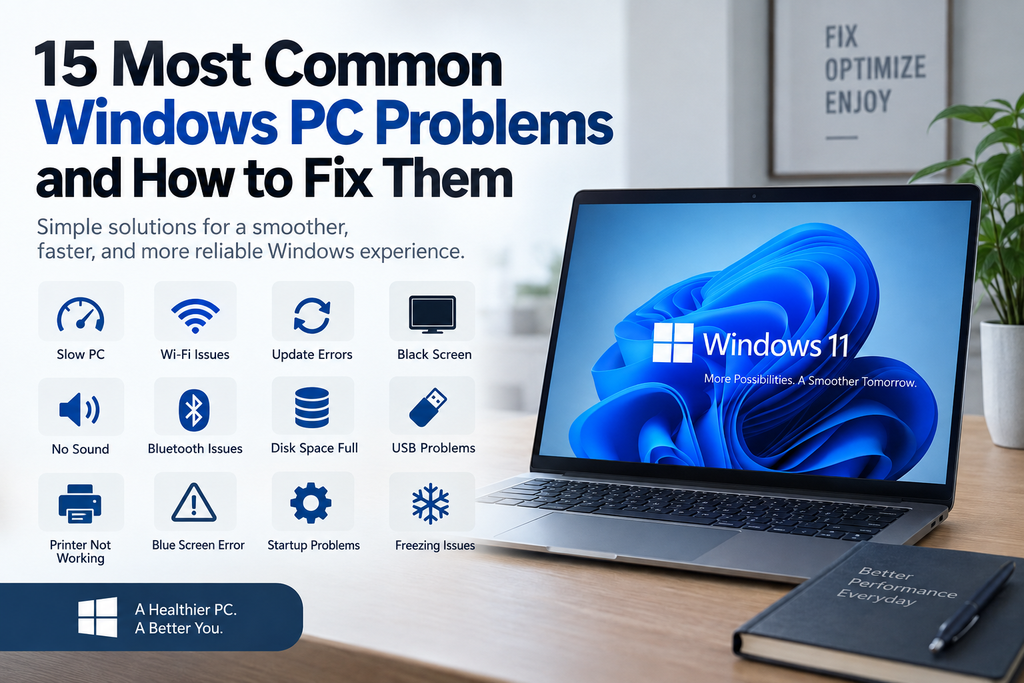
Windows is one of the most widely used operating systems in the world. However, users can still experience common problems such as slow performance, Wi-Fi issues, update errors, freezing, black screens, sound problems, and more.
Many Windows problems can be fixed with simple troubleshooting steps without taking the computer to a repair shop. This guide covers some of the most common Windows PC problems and explains how to fix them.
The Windows PC Is Running Very Slowly
A slow Windows PC is one of the most common problems users experience. Programs may take longer to open, Windows may respond slowly, or the computer may take several minutes to start.
This can happen because of too many startup programs, limited storage, high CPU or RAM usage, outdated drivers, background applications, or older hardware.
How to Fix It
- Start by opening Task Manager with Ctrl + Shift + Esc. Check the CPU, memory, and disc usage to see whether a particular application is consuming too many system resources.
- Close unnecessary applications running in the background. Then open the Startup Apps section and disable programs that you do not need when Windows starts.
- Check your system drive and remove unnecessary files to create more free storage space. You should also install available Windows updates and update important device drivers.
- If your computer still uses an old mechanical HDD, upgrading to an SSD can provide a significant improvement in startup times and overall performance.
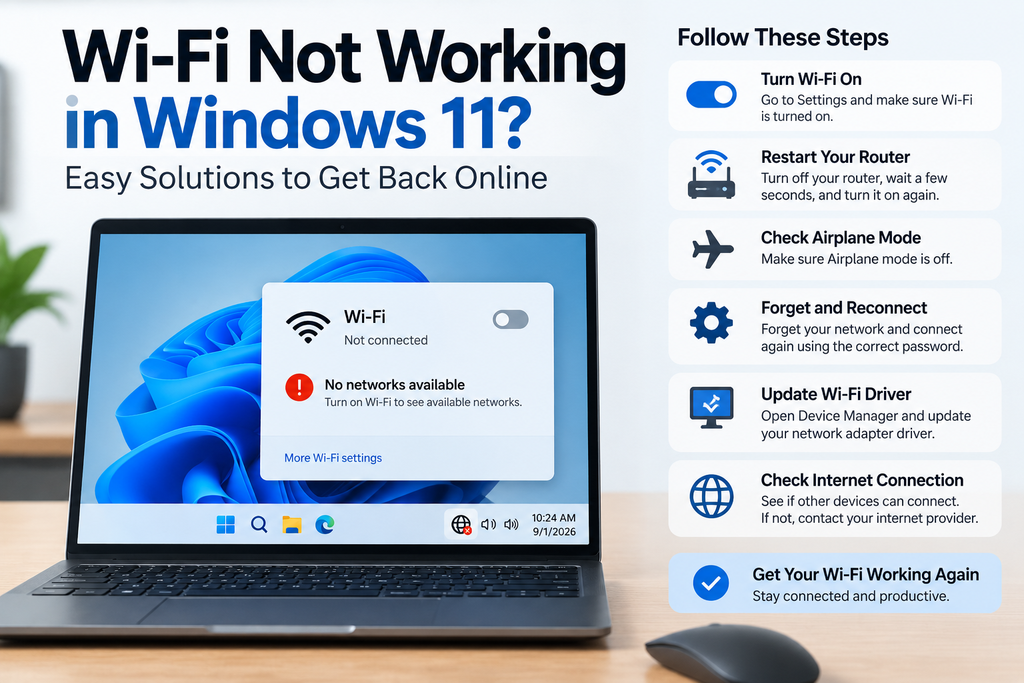
Windows 11 Wi-Fi Not Working
When Wi-Fi is not working in Windows 11, the problem may be related to the router, network settings, wireless adapter, or its driver.
Sometimes Windows detects available networks but cannot connect to them. In other situations, the Wi-Fi option may disappear completely.
How to Fix It
- Start by turning Wi-Fi off and on from Windows Settings. Restart both the computer and the router.
- Make sure Airplane Mode is turned off. If your network appears but Windows cannot connect, select the network, choose Forget, and then connect again using the correct password.
- Check whether other devices can connect to the same Wi-Fi network. If they also cannot connect, the problem may be with the router or internet connection.
- If the issue only affects your PC, open Device Manager and check the Network Adapters section. Update the Wi-Fi driver if a newer version is available.
Windows Update Not Working
Windows Update may sometimes fail to download or install updates. An update may also remain stuck at a particular percentage.
Common causes include insufficient storage, internet connection problems, corrupted update files, or Windows service issues.
How to Fix It
- Restart your computer and make sure you have a stable internet connection. Open Settings, go to Windows Update, and select Check for Updates.
- Make sure the system drive has enough free space. Windows updates may fail when there is insufficient storage.
- You can also run the built in Windows Update Troubleshooter to identify and fix common update problems.
- If the issue continues, check whether a recently installed application, driver, or security program may be interfering with the update process.
PC Keeps Freezing
A Windows computer that freezes randomly can become difficult to use. The mouse may stop responding, applications may become unresponsive, or the entire screen may freeze.
The problem can be caused by high memory usage, overheating, problematic drivers, background applications, or failing hardware.
How to Fix It
- Open Task Manager using Ctrl + Shift + Esc and check CPU, Memory, and Disk usage.
- If an application is consuming excessive resources, close it and check whether the computer becomes responsive again.
- Disable unnecessary Startup Apps and install available Windows and driver updates.
- You should also make sure the computer is not overheating. Keep the cooling vents clear and make sure air can circulate properly.
- If the freezing continues, start Windows in Safe Mode. If the computer works normally in Safe Mode, a third party application or driver may be responsible.
Windows 11 Black Screen
A black screen can appear during startup, after signing in, or following a Windows or graphics driver update.
The issue may be caused by a display driver, monitor connection, graphics hardware, or a temporary Windows problem.
How to Fix It
- Press Windows + Ctrl + Shift + B to reset the graphics driver. You may hear a short sound or see the screen refresh.
- Check the monitor’s power cable and display cable. Disconnect and reconnect the HDMI or DisplayPort cable.
- If possible, test the computer with a different monitor to determine whether the problem is related to the display.
- If the problem started after a graphics driver update, try updating or rolling back the display driver.
- You can also start Windows in Safe Mode if the normal display does not work.
100% Disk Usage in Windows
When Disk Usage reaches 100%, Windows can become extremely slow. Programs may take a long time to open, and the computer may appear to freeze.
High disk usage can be caused by background applications, Windows services, antivirus scans, or an aging hard drive.
How to Fix It
- Open Task Manager using Ctrl + Shift + Esc and click the Disk column to identify the processes using the most disk resources.
- Close unnecessary applications and remove temporary files from the system.
- Review your Startup Apps and disable programs that are not required when Windows starts.
- Restart the computer and check whether disk usage returns to normal.
- If you are using an older mechanical HDD, upgrading to an SSD can significantly improve overall system performance.
Windows PC Won’t Start
A PC that will not start can have either a power problem or a Windows boot problem. The first step is to determine whether the computer is receiving power.
How to Fix It
- Check the power cable or charger and make sure the connection is secure.
- For a laptop, connect the charger and try starting the computer again. For a desktop, check the power connection and power supply.
- Disconnect unnecessary USB devices and external hardware before trying again.
- If the computer turns on but Windows does not load, enter the Windows Recovery Environment and select Startup Repair.
- Windows will then attempt to identify and repair common startup problems.
Windows Stuck on Automatic Repair
Windows may sometimes become stuck on ‘Preparing Automatic Repair‘ or ‘Diagnosing Your PC’. This usually indicates a problem with the Windows startup process.
How to Fix It
- Enter the Windows Recovery Environment and select Troubleshoot.
- Open Advanced Options and choose Startup Repair.
- Allow Windows to complete the repair process and restart the computer.
- If Startup Repair does not solve the problem and a restore point is available, try System Restore.
- You should also consider whether a recently installed driver, application, or Windows update caused the startup problem.
Bluetooth Not Working on Windows
If Bluetooth is not working, Windows may fail to detect wireless headphones, keyboards, mice, speakers, or other devices.
The problem can be caused by pairing issues, outdated drivers, disabled Bluetooth functionality, or a problem with the Bluetooth device.
How to Fix It
- Turn Bluetooth off and on from Windows Settings.
- Restart the Bluetooth device and check its battery level.
- Make sure the device is in pairing mode and close enough to the computer.
- Remove the device from Windows and pair it again.
- Install available Windows updates and open Device Manager to check whether the Bluetooth driver needs an update.
- If another Bluetooth device works correctly, the original device may be causing the problem.
No Sound in Windows
When there is no sound in Windows, the problem may be caused by incorrect audio settings, muted volume, disconnected headphones, or an audio driver issue.
How to Fix It
- Check the Windows volume and make sure the system is not muted.
- Open Settings → System → Sound and select the correct output device.
- Disconnect and reconnect your headphones or speakers.
- If you are using Bluetooth headphones, make sure they are properly connected and selected as the output device.
- If Windows does not detect the audio device, open Device Manager and check the audio driver.
- Update or reinstall the audio driver if necessary.
C Drive Is Full
A full C drive can make Windows slower and may prevent updates or applications from working correctly.
Windows requires free storage for temporary files, updates, applications, and normal system operations.
How to Fix It
- Open Settings → System → Storage and check which categories are using the most space.
- Remove unnecessary temporary files and uninstall applications that you no longer use.
- Check your Downloads folder and delete files you no longer need.
- Empty the Recycle Bin to permanently remove deleted files.
- Large personal files can be moved to an external drive or cloud storage.
- Avoid manually deleting important Windows system files, as doing so can cause additional problems.
USB Device Not Recognized
Windows may display USB Device Not Recognized when a flash drive, keyboard, mouse, external hard drive, or another USB device cannot be detected.
The problem may be related to the USB port, cable, driver, or the connected device.
How to Fix It
- Disconnect the USB device and restart the computer.
- Connect the device to a different USB port. If the device uses a removable cable, try another cable.
- Test the device on another computer to determine whether the problem is with Windows or the device itself.
- Open Device Manager and check the USB controllers for driver or device errors.
- Install available Windows and driver updates.
- If the device is not detected on any computer, it may have a hardware problem.
Windows Blue Screen Error
The Blue Screen of Death, commonly known as BSOD, appears when Windows encounters a serious system problem.
The cause can be related to faulty drivers, software, hardware, memory, or damaged system files.
How to Fix It
- First, note the stop code displayed on the blue screen. This code can help identify the underlying problem.
- Think about any recently installed software, drivers, or hardware.
- Install available Windows updates and update important device drivers.
- If the problem started after installing new hardware, disconnect it temporarily and test the computer again.
- If the blue screen continues to appear, start Windows in Safe Mode and investigate recently installed software or drivers.
- Repeated BSOD errors should not be ignored because they may indicate an underlying hardware or system problem.
Printer Not Working in Windows
A printer that is not printing can be caused by connection problems, outdated drivers, an incorrect printer selection, a stuck print queue, or the Windows Print Spooler service.
How to Fix It
- Restart the printer and computer.
- Check the USB cable or Wi-Fi connection and make sure the printer is properly connected.
- If it is a wireless printer, confirm that the printer and computer are connected to the correct network.
- Open Windows printer settings and check whether the printer is showing an error or offline status.
- Remove the printer and add it again if necessary.
- Clear any stuck documents from the Print Queue.
- If the problem continues, update or reinstall the printer driver.
Windows 11 Running Very Slow
If Windows 11 is running very slowly, the problem can be caused by startup applications, insufficient storage, high resource usage, outdated drivers, or older hardware.
How to Fix It
- Open Task Manager and check CPU, memory, and disk usage.
- Disable unnecessary startup apps that launch automatically with Windows.
- Remove temporary and unnecessary files to create more free storage.
- Install the latest Windows updates and update important device drivers.
- Close unnecessary applications running in the background.
- Run a security scan using Windows Security to check for potential threats.
- If the computer still uses an old HDD, consider upgrading to an SSD.
- If the system has limited RAM, adding more RAM may also improve performance, particularly when running multiple applications at the same time.
Final Thoughts
Most common Windows problems do not require a complete Windows reinstall or professional repair. Basic troubleshooting such as restarting the computer, checking Task Manager, freeing storage, updating Windows and drivers, and checking hardware connections can often resolve the issue.
However, if a problem keeps returning, it is important to identify the root cause instead of repeatedly applying temporary fixes.
Persistent freezing, blue screen errors, boot failures, storage problems, and unusual system behavior can sometimes indicate an underlying hardware or software issue. Keeping Windows updated, maintaining sufficient storage, and regularly checking system performance can help prevent many common PC problems.



Pingback: Internet Basics Explained: Common Questions About Different Topics - Topqna